WordPix — Visual English Learning
Everyday scenes, English vocabulary, pronunciation and review for Arabic-speaking adults.
RoleUX Designer, Front-End Developer & AI Workflow Lead
Designed the visual learning flow and bilingual feedback, and directed AI implementation.
Problem
Knowing a translation gives a learner only part of a word’s meaning. I wanted to connect vocabulary with familiar situations and pronunciation, then make practice and return visits easy to follow.
Key decisions
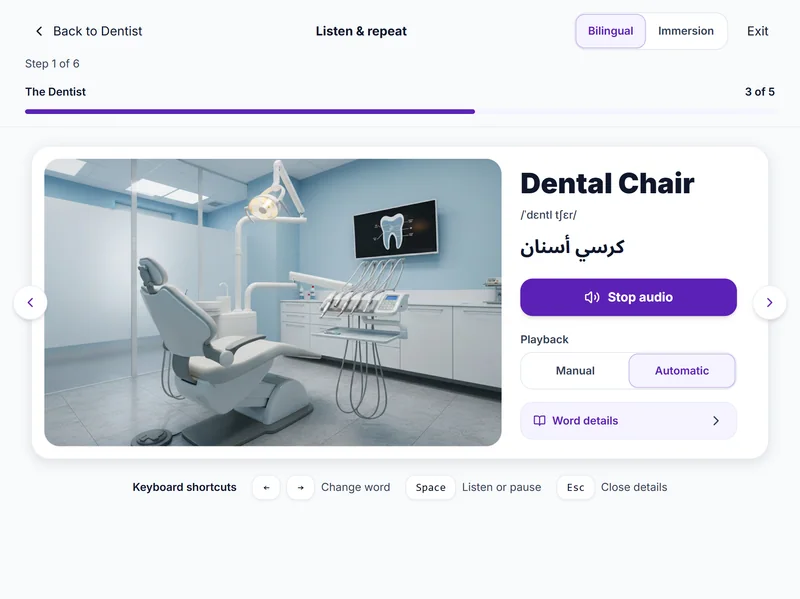
I kept the learning loop together so learners can see an item, hear it, respond and read the feedback. Automatic submission keeps short drills moving. Replay and another attempt at missed words help learners control the pace.
Solution
I shaped the learning flow and bilingual interaction, then directed and reviewed the front-end implementation. The working app connects illustrated vocabulary, pronunciation, practice and spaced reviews, with progress saved for return visits.
Explore screens & design details
A closer look at the features, interface and evidence behind the work.
Discover, practise, return
Explore themed scenes and select everyday objects to connect image, English word, Arabic meaning and pronunciation. Bilingual and immersion modes offer different levels of support.
Answers register automatically with inline feedback. Missed words return later in the drill, keeping correction within the learning flow instead of interrupting it with a modal.
The Practice hub puts reviews due today first. SM-2 spaced repetition schedules future reviews around performance, helping learners revisit words over time.
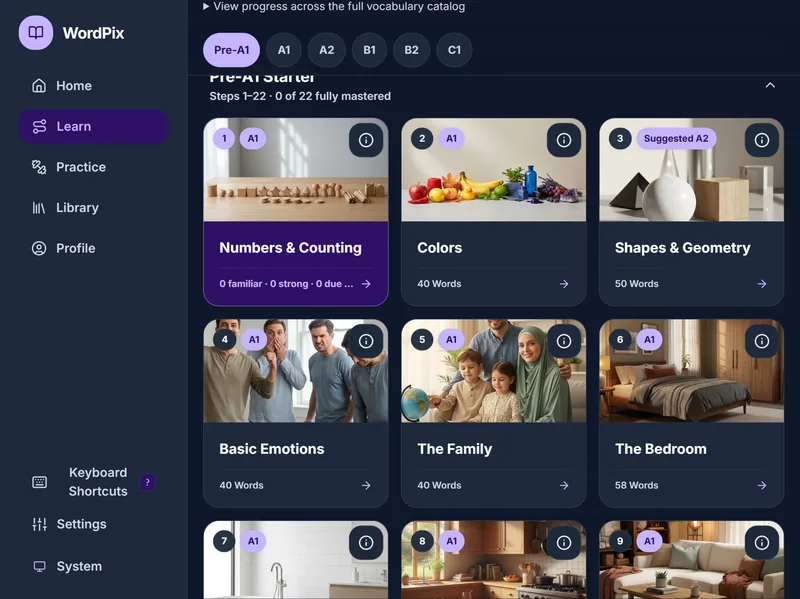
A 200-unit curriculum spans A1–C1, alongside Business English, Daily Conversation, Pronunciation and Hadith Vocabulary tracks. Choose a progression or focus on a practical need.
More than 30 exercise variations include audio–picture matching, sentence building, context gaps, sorting, text entry and spoken echo practice. Sound-contrast lessons make pronunciation a dedicated part of the experience.
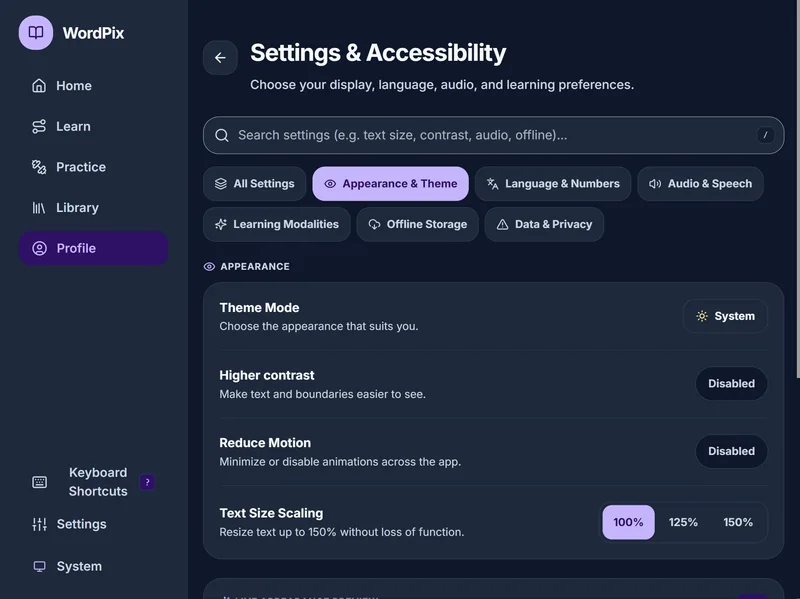
Arabic RTL layouts, number preferences, text scaling up to 150%, higher contrast, reduced motion and speech-speed controls support different study needs. Local IndexedDB caching is designed to support offline study.
Inside the learning experience
Nine creator-supplied screens show the curriculum, listening, pronunciation and appearance settings. Choose a screen or use the arrows; select an image to enlarge it.
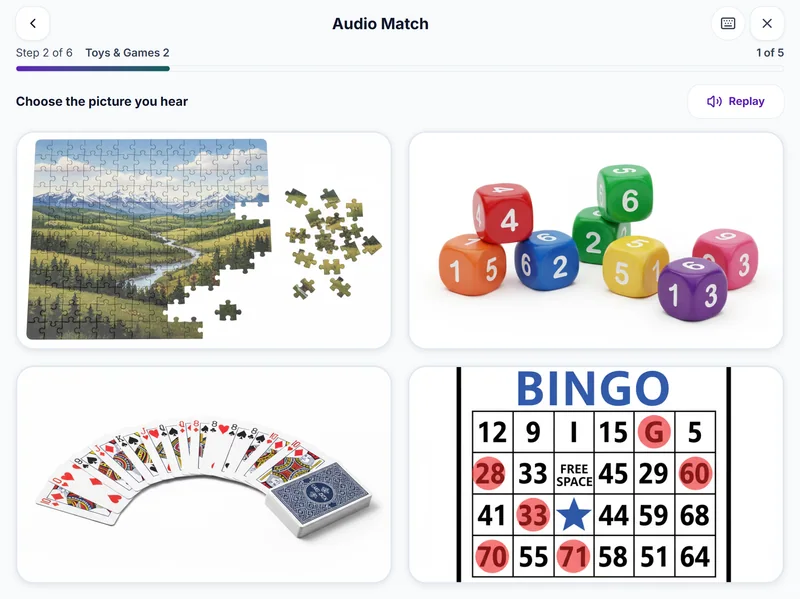
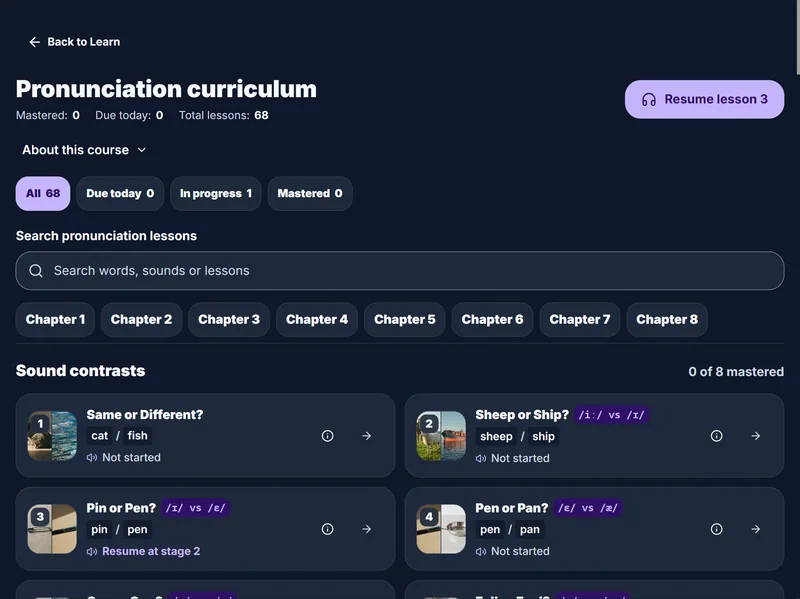
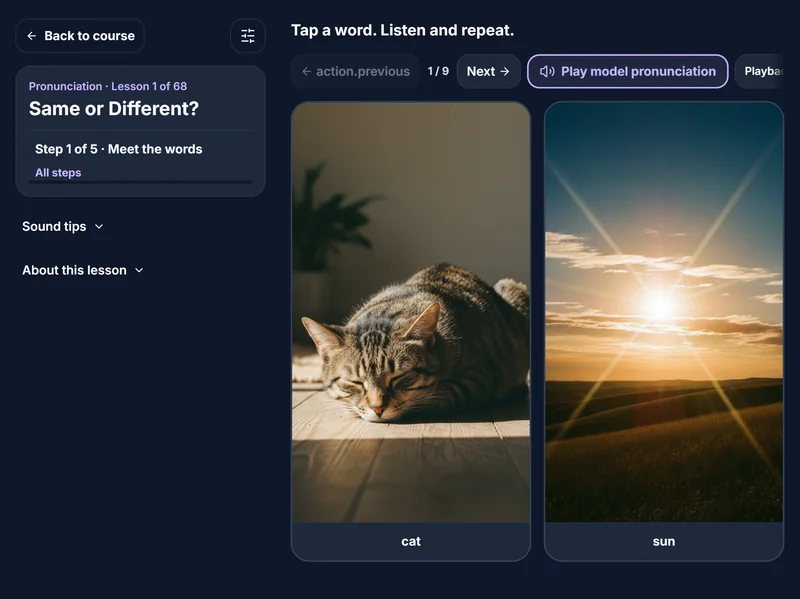
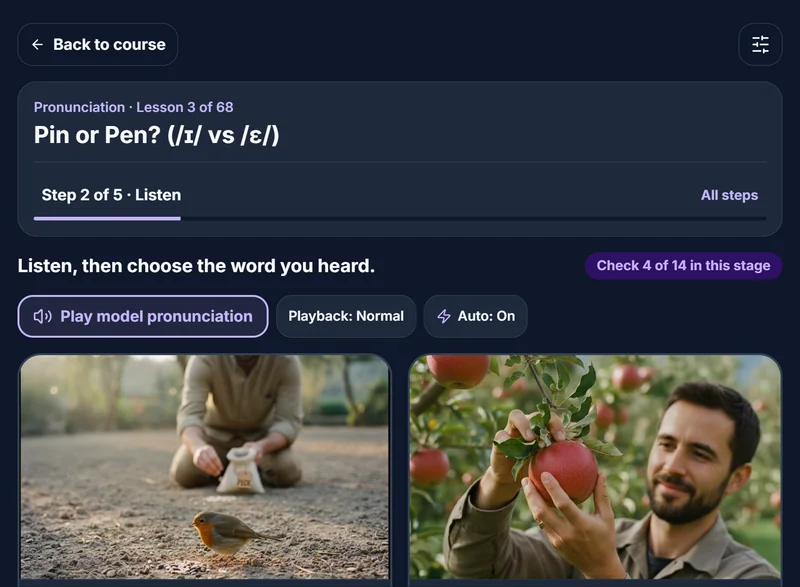
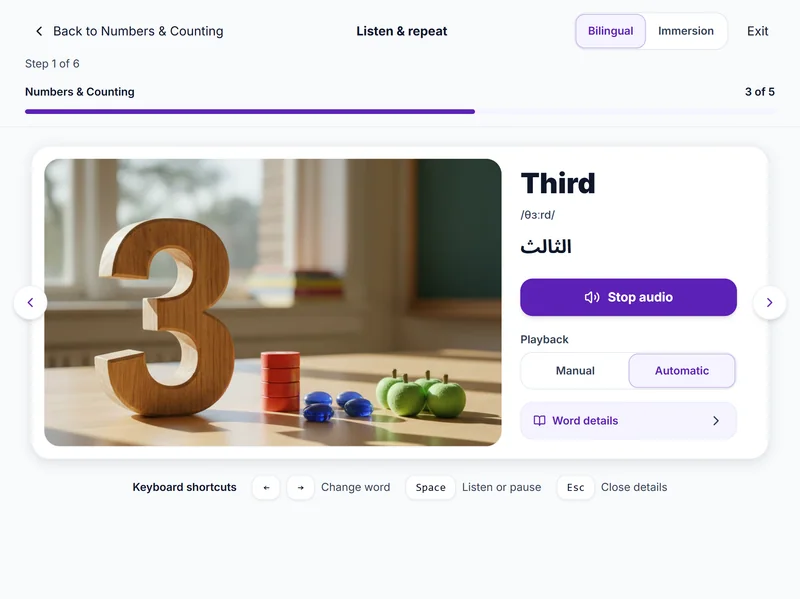
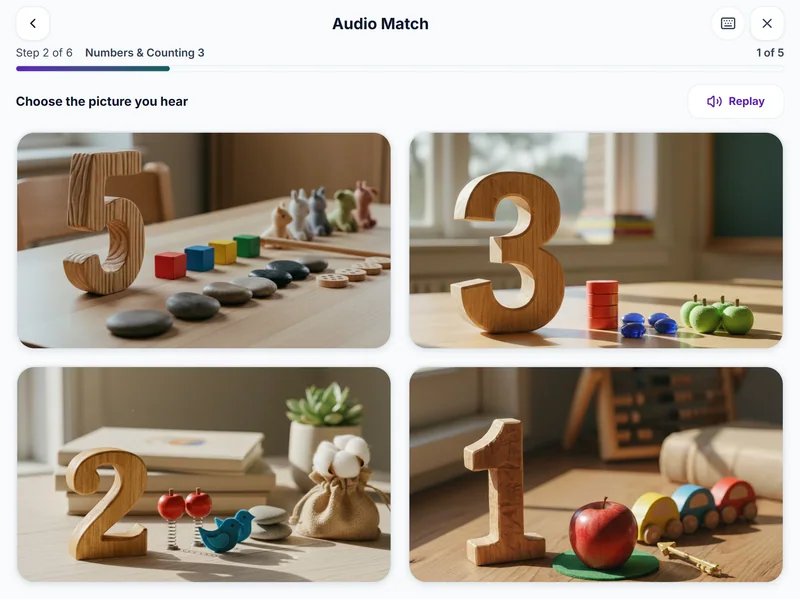
Keep the image, word, audio and response together. Make the next prompt clear and let learners replay a word or inspect its meaning when needed.
Trade-off: Automatic submission makes accidental taps more consequential. Replay, clear feedback and another attempt at missed words support recovery.
Why this approach
Images and Arabic meanings provide an entry point. Immersion settings let learners adjust that support, while separate lesson and review paths give each visit a clear task.
What I learned
Specifying lesson states and feedback helped me carry the learning intent into the working interface.
Next validation task
Ask Arabic-speaking adults to start a lesson, explain feedback and find a due review. Check keyboard access, screen readers, enlarged text and offline recovery. Assess delayed recall to evaluate learning.
Observed in browser review
In the Numbers & Counting lesson, immersion mode hid the Arabic meaning while bilingual mode displayed it. Word details opened as a dialog at 390px and a side panel at 1440px. Escape dismissed the details and returned focus to the trigger; Next word advanced from One to Two.
Scripted Chromium interactions at emulated viewport sizes. These observations describe interface behavior; they are not participant usability findings or measured improvements.